
blog

How to Change or Reset cPanel Password in 2026 (Client Area & Direct Login)

RM
Raj Mehto Hosting & Infrastructure Analyst
May 2, 2023 8 min read
How to Change or Reset cPanel Password 2026

Your cPanel account holds the keys to your entire online presence—your source code files, customer databases, business email accounts, and SSL certificates. Keeping your cPanel password updated, robust, and resetting it immediately if you suspect unauthorized access or forgot your credentials is the first line of defense against cyber threats.

Whether you remember your current password and want to update it for security reasons, or you are completely locked out and need to reset it, HeroHosty provides multiple seamless methods to regain control in under 60 seconds.

In this 2026 walkthrough, we cover both methods: updating your password from inside cPanel, and resetting it directly via the HeroHosty Client Area without knowing your current password.

🛡️

Password Security Golden Rules (2026):

  • Aim for 16+ Characters: Combine uppercase, lowercase, numbers, and special symbols (e.g., #$*&!).
  • Use cPanel’s Password Generator: It automatically generates cryptographically secure, high-entropy passwords.
  • Never Reuse Passwords: Do not use the same password for cPanel, WordPress admin, and your personal email.

Method 1: Reset cPanel Password via HeroHosty Client Area (When Locked Out)

If you forgot your cPanel password, you do NOT need to wait for a support ticket. You can overwrite and reset your password instantly from your HeroHosty billing area:

  1. Visit the HeroHosty Client Area and sign in with your account email and billing password.
  2. Click on Services → My Services from the top navigation bar.
  3. Click on your active hosting service (e.g., Single Shared Hosting or Business NVMe).
  4. In the left-hand sidebar menu, locate and click on Change Password.
  5. Enter your New Password and confirm it in the field below.
  6. Click Save Changes. The server daemon will synchronize your new password across cPanel and your FTP accounts instantly!

Method 2: Change Password Inside cPanel (Password & Security)

If you are already logged in to your cPanel account and want to update your password:

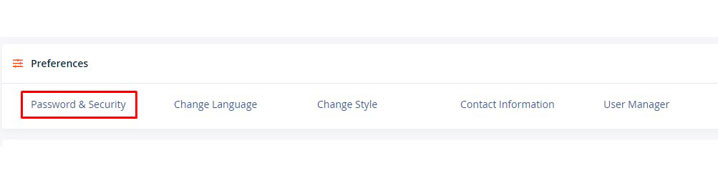
  1. In the top-right corner of cPanel, click on your User Icon / Username.
  2. Select Password & Security from the dropdown menu.
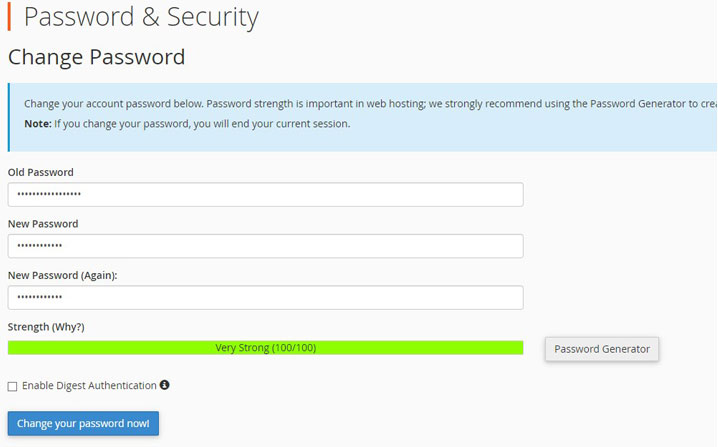
  3. Enter your Old Password in the first field.
  4. Enter your New Password or click the “Password Generator” button to generate a strong password (make sure to copy and save it in your password manager).
  5. Optionally, check the box “Synchronize MySQL password” to keep your database root sync in harmony.
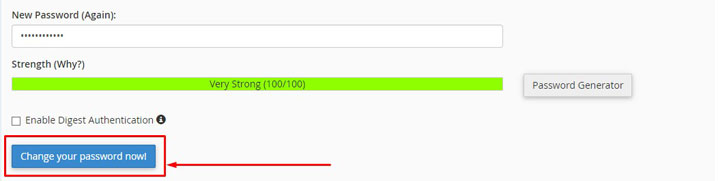
  6. Click Change your password now! You will be logged out and asked to log back in with your new credentials.

Extra Security: Enable Two-Factor Authentication (2FA) in cPanel

To prevent unauthorized access even if your password is ever compromised in a data breach, enable Two-Factor Authentication (2FA):

  • In cPanel, scroll to the Security section and click Two-Factor Authentication.
  • Click Set Up Two-Factor Authentication.
  • Scan the displayed QR code using an authenticator app (Google Authenticator, Microsoft Authenticator, or 1Password) on your smartphone.
  • Enter the 6-digit verification code and click Configure Two-Factor Authentication.

Recommended Secure Web Hosting Plans

Single Shared Hosting

Ideal for personal blogs, starter sites, and portfolios.

✓ 1 Website
✓ 10 GB Enterprise NVMe
✓ Unmetered Bandwidth
✓ Free SSL & cPanel

€0.97 /month

Deploy Single Plan →

Premium Shared Hosting

Max performance for web agencies and high-traffic portals.

✓ Unlimited Websites
✓ Unlimited NVMe SSD
✓ 3 CPU Cores & 6 GB RAM
✓ VIP 24/7 Support & Backups

€2.93 /month

Deploy Premium Plan →

Frequently Asked Questions (FAQ) : cPanel Password Reset

1. Does changing my cPanel password change my WordPress admin password?

No. Your cPanel account and your WordPress admin user are completely independent. To change your WordPress password, see our WordPress Password Reset Tutorial.

2. Does resetting my cPanel password affect my FTP access?

Yes. Your main cPanel username and password also serve as your root FTP credentials. When you change your cPanel password, your main FTP password updates automatically.

3. What if I can’t log in to my HeroHosty Client Area either?

Use the “Forgot Password” link on the Client Area login page to receive a password recovery email at your registered account address, or reach out to our 24/7 support team via WhatsApp.

Share this article:
RM

About Raj Mehto

Senior Infrastructure & Cloud Hosting Analyst at HeroHosty. Dedicated to conducting independent speed benchmarks, server hardware evaluations, and actionable hosting advice for Indian website owners.

🚀 Fast NVMe Web Hosting

Ready to Experience Lightning-Fast Website Speeds?

Deploy your website on HeroHosty's LiteSpeed NVMe servers starting at just ₹69/month (on 3-year plan) with free cPanel, free SSL, and 24/7 instant WhatsApp support.

Explore HeroHosty Hosting Plans →