
blog

How to Change PHP Version in cPanel (PHP 8.1, 8.2 & 8.3 Guide 2026)

RM
Raj Mehto Hosting & Infrastructure Analyst
Apr 30, 2023 8 min read
How to Change PHP Version in cPanel 2026 Guide

PHP is the server-side scripting language that powers over 77% of all websites whose server-side programming language is known, including WordPress, WooCommerce, Joomla, and Drupal. Running an outdated PHP version (like PHP 7.4 or 8.0) leaves your website vulnerable to critical security exploits and causes significant performance bottlenecks.

Benchmark tests show that upgrading from PHP 7.4 to PHP 8.2 or PHP 8.3 delivers up to a 300% boost in request handling capacity, reduces CPU resource consumption, and slashes Time-to-First-Byte (TTFB) by more than half.

In this 2026 guide, you will learn how to change your PHP version in cPanel in under 60 seconds using MultiPHP Manager or Select PHP Version, how to enable essential PHP extensions, and how to increase your PHP memory limit.

⚡

Why You Should Upgrade to PHP 8.2 or PHP 8.3 Today

  • Huge Speed Improvements: JIT (Just-In-Time) compilation processes complex WordPress code significantly faster.
  • Active Security Patches: PHP 7.4 and 8.0 reached End-of-Life (EOL) years ago and receive zero security updates.
  • Plugin & Theme Compatibility: Modern WordPress plugins and WooCommerce require PHP 8.1+ to operate without fatal errors.
  • Reduced Server Load: Fewer CPU cycles per pageview means your site handles traffic spikes with ease.

Method 1: Change PHP Version via MultiPHP Manager (Universal Method)

Most modern cPanel servers on HeroHosty feature the native MultiPHP Manager, allowing you to assign different PHP versions to individual domains and subdomains on the same account:

  1. Log in to your cPanel dashboard (via yourdomain.com:2083 or the HeroHosty Client Area).
  2. Under the Software section, click on MultiPHP Manager.
  3. Scroll down to the Set PHP Version per Domain table. You will see a list of all your domains and subdomains alongside their currently active PHP version.
  4. Check the box next to the domain name you want to update.
  5. In the top right dropdown menu labeled PHP Version, select your target version (we recommend PHP 8.2 or PHP 8.3 for maximum stability and speed).
  6. Click the blue “Apply” button. The change takes effect instantaneously!

Method 2: Change PHP Version & Extensions via “Select PHP Version” (CloudLinux)

On servers running CloudLinux OS, you get the advanced Select PHP Version module. This gives you granular control over PHP modules, extensions, and memory limits:

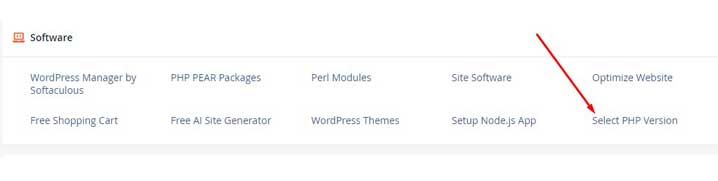
  1. In cPanel, click on Select PHP Version under the Software tab.
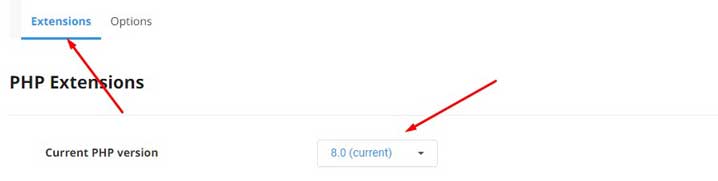
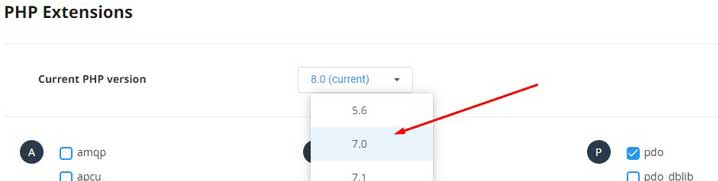
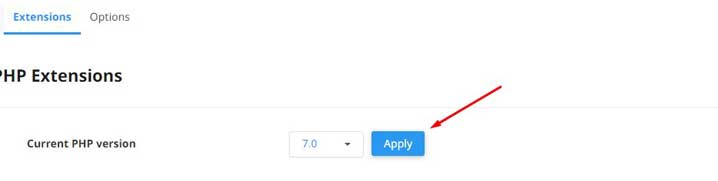
  2. Next to Current PHP Version, click the dropdown and choose 8.2 or 8.3, then click “Set as current”.
  3. Enable Essential Extensions: In the Extensions tab below, ensure the following critical modules are checked:
    • opcache (vital for LiteSpeed and PHP caching)
    • imagick (required by WordPress for image cropping and WebP generation)
    • curl, mbstring, zip, intl, mysqli
  4. Adjust PHP Directives: Switch to the Options tab to customize:
    • memory_limit → Set to 512M
    • upload_max_filesize → Set to 64M or 128M
    • post_max_size → Set to 128M
    • max_execution_time → Set to 300

What to Do If Your Website Shows an Error After Updating PHP

If your website displays a blank white screen (WSOD) or a “Fatal Error” immediately after switching to a newer PHP version, it means an outdated theme or plugin on your site is incompatible with modern PHP syntax.

How to Troubleshoot Incompatibilities:

  1. Instant Rollback: Return to MultiPHP Manager and switch back to the previous working PHP version (e.g., PHP 8.1). Your website will recover immediately.
  2. Update Themes & Plugins: Log in to your WordPress admin panel and update all plugins and themes to their latest available releases.
  3. Check Error Logs: In cPanel, open Metrics → Errors or check the public_html/error_log file to identify the exact plugin filename triggering the incompatibility.
  4. Re-test: Once updated, switch back to PHP 8.2 or 8.3!

Recommended High-Performance Web Hosting Plans

Single Shared Hosting

Ideal for personal blogs, starter sites, and portfolios.

✓ 1 Website
✓ 10 GB Enterprise NVMe
✓ Unmetered Bandwidth
✓ Free SSL & cPanel

€0.97 /month

Deploy Single Plan →

Premium Shared Hosting

Max performance for web agencies and high-traffic portals.

✓ Unlimited Websites
✓ Unlimited NVMe SSD
✓ 3 CPU Cores & 6 GB RAM
✓ VIP 24/7 Support & Backups

€2.93 /month

Deploy Premium Plan →

Frequently Asked Questions (FAQ) : Changing PHP Versions in cPanel

1. Which PHP version is recommended for WordPress in 2026?

PHP 8.2 or PHP 8.3 is strongly recommended. They offer the optimal balance between peak execution performance, memory optimization, and full compatibility with WordPress core.

2. Can I run different PHP versions on different subdomains?

Yes. With MultiPHP Manager, you can independently assign PHP 8.3 to your main domain while keeping a legacy subdomain running on PHP 8.1 if required.

3. Does changing the PHP version cause website downtime?

No. The server re-routes PHP-FPM / LiteSpeed workers instantly without restarting the entire web server, ensuring zero downtime for your active website visitors.

Share this article:
RM

About Raj Mehto

Senior Infrastructure & Cloud Hosting Analyst at HeroHosty. Dedicated to conducting independent speed benchmarks, server hardware evaluations, and actionable hosting advice for Indian website owners.

🚀 Fast NVMe Web Hosting

Ready to Experience Lightning-Fast Website Speeds?

Deploy your website on HeroHosty's LiteSpeed NVMe servers starting at just ₹69/month (on 3-year plan) with free cPanel, free SSL, and 24/7 instant WhatsApp support.

Explore HeroHosty Hosting Plans →