
cPanel WordPress Mastery Hub (2026 Guides):
WordPress powers over 43% of all websites on the internet today. Setting up a new WordPress website in 2026 does not require any coding, terminal commands, or manual MySQL database creation. With HeroHosty’s authentic cPanel and the Softaculous Apps Installer, you can deploy a lightning-fast WordPress installation in under 60 seconds with 1 single click.
Every WordPress instance installed on HeroHosty comes pre-optimized for our LiteSpeed Enterprise web server with automated SSL certificate integration, automated daily backups, and malware scanning.
Follow this comprehensive step-by-step tutorial to install WordPress properly, configure your administrative credentials securely, and avoid the most common beginner installation mistakes.
Prerequisites Before Starting:
- An active HeroHosty hosting account (Shared or WordPress Hosting).
- Your domain name pointed to HeroHosty’s nameservers (see our Nameserver Guide).
- Your cPanel login credentials (found in your welcome email).
Step 1: Access Softaculous in cPanel
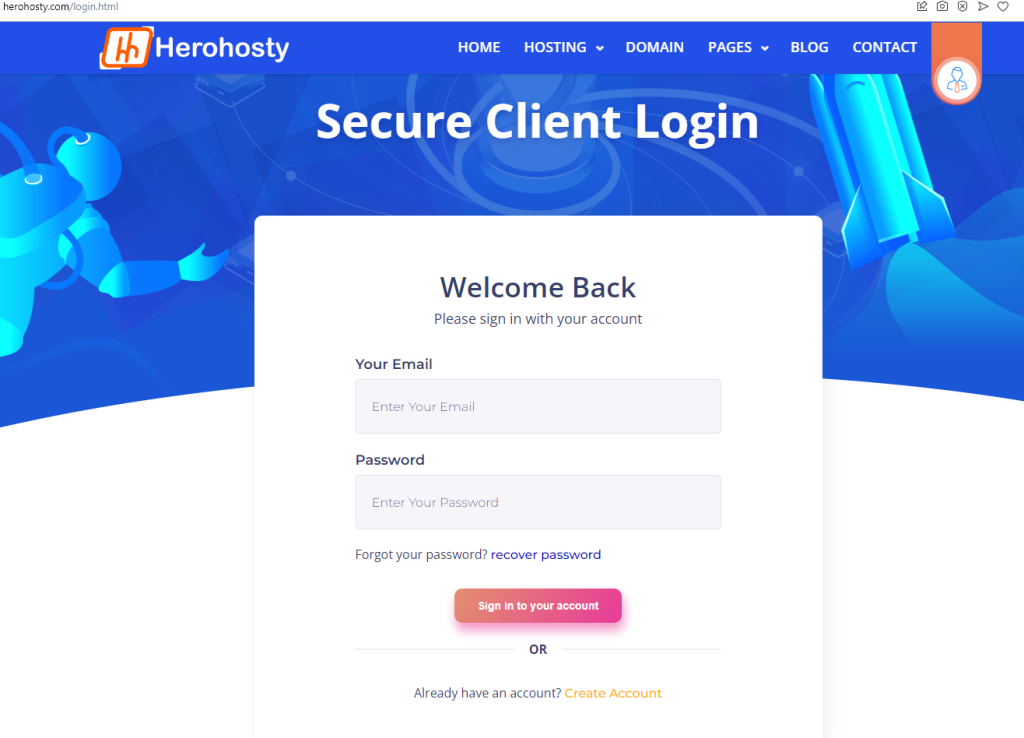
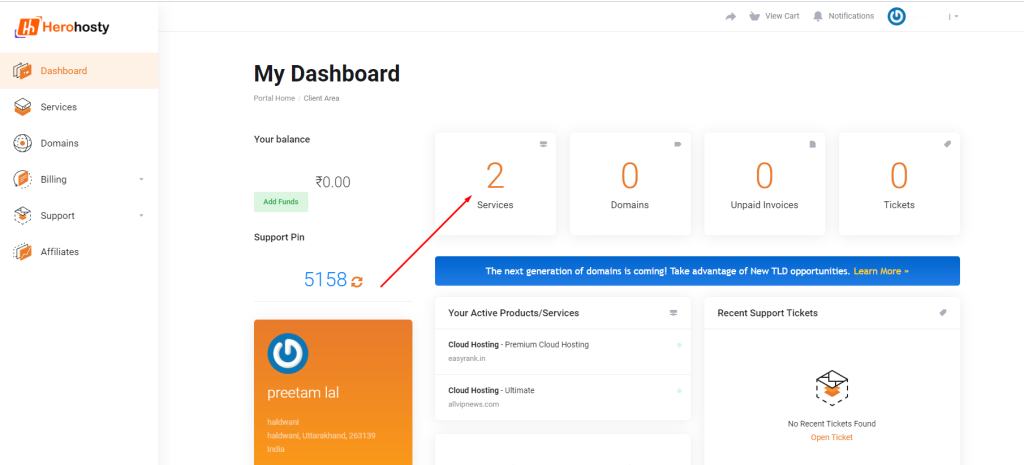
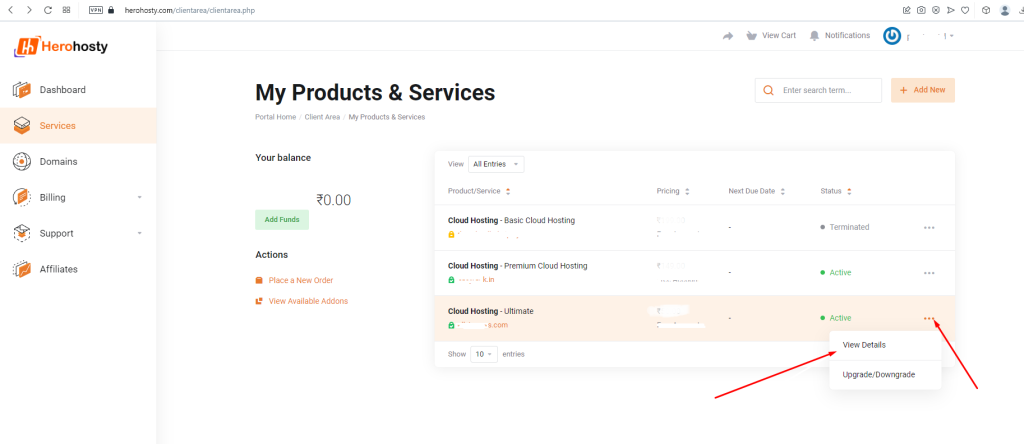
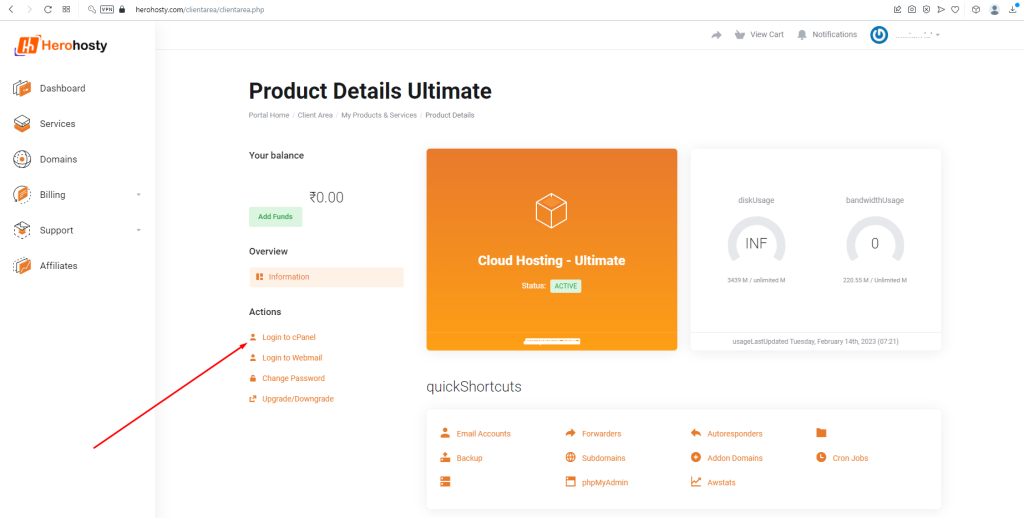
First, log in to your cPanel account (browse to https://yourdomain.com:2083 or log in directly via the HeroHosty Client Area without entering passwords).
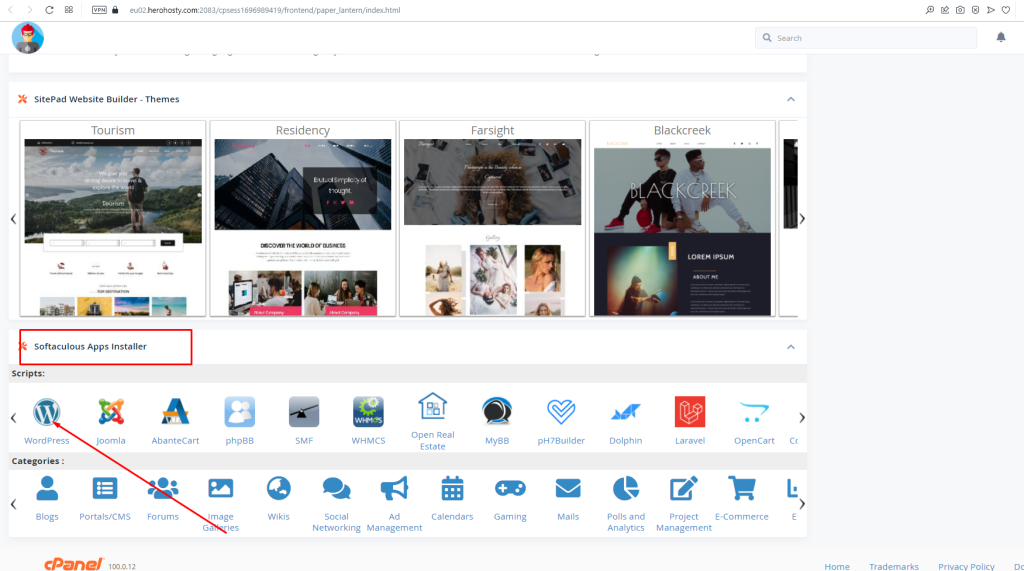
Once inside cPanel, scroll down to the bottom to the Software section, or type “Softaculous” in the top search bar. Click on either Softaculous Apps Installer or the WordPress icon directly under Scripts.
Step 2: Configure WordPress Software Setup
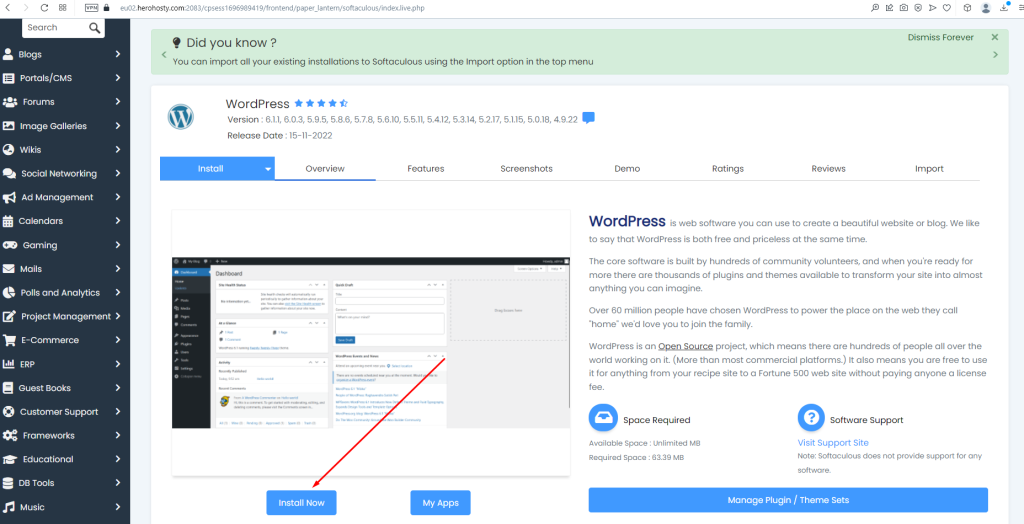
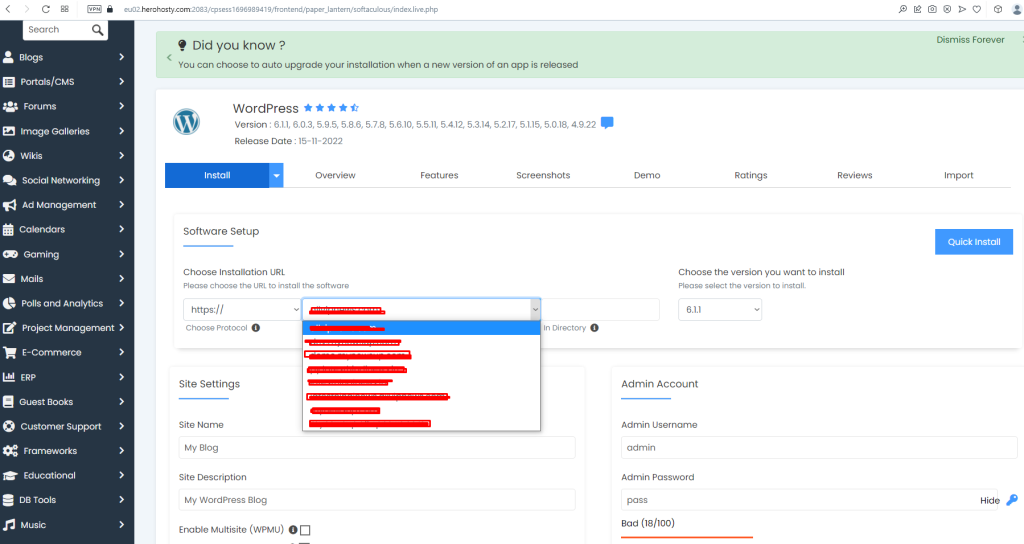
Click the blue “Install Now” button. You will be presented with the WordPress configuration screen. Follow these essential field settings:
- Choose Protocol: Select
https://orhttps://www.(HeroHosty issues free SSL automatically; see our SSL Installation Guide). - Choose Domain: Select the domain name on which you want to install WordPress.
- In Directory (CRITICAL): Leave this field COMPLETELY BLANK! If you leave the default
wpin this field, your site will install atyourdomain.com/wpinstead of your main homepageyourdomain.com. - Choose WordPress Version: Keep the latest stable version selected (e.g., WordPress 6.6+).
Step 3: Site Settings & Admin Account Security
Securing Your WordPress Login:
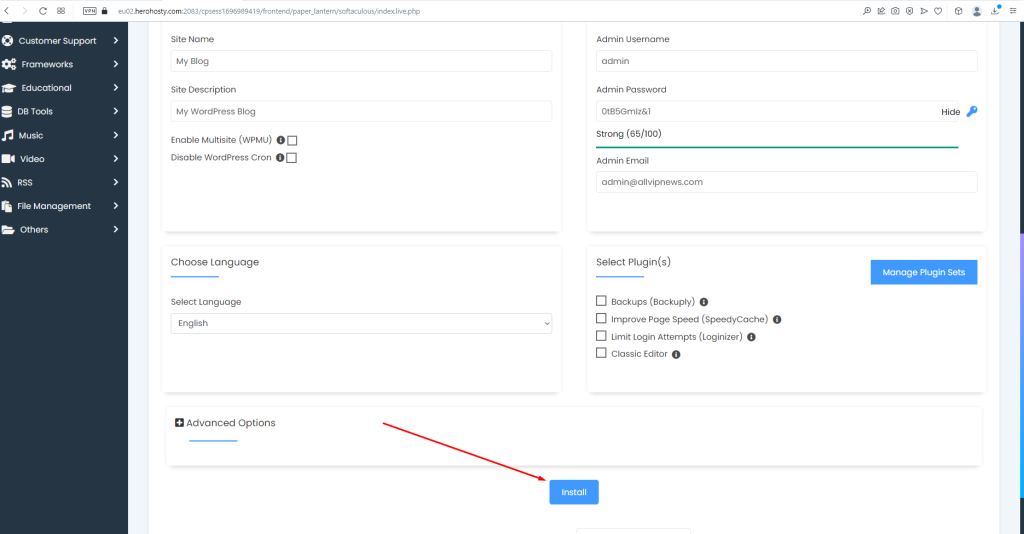
- Site Name & Description: Enter your website title and tagline (e.g., “My Portfolio – Web Design Agency”). You can change these anytime in WP-Admin.
- Admin Username: NEVER use “admin”! Over 90% of brute-force attacks target the default “admin” user. Choose a unique custom username.
- Admin Password: Use a strong, complex password with uppercase letters, numbers, and symbols (minimum 12 characters).
- Admin Email: Enter a valid email address you actively check. Password recovery and core security notifications are sent here.
- Select Language: Choose your preferred WordPress dashboard language (English, French, Hindi, Spanish, etc.).
Step 4: Advanced Options & Complete Installation
Expand the Advanced Options tab for high-performance recommendations:
- Auto Upgrade: Check “Auto Upgrade WordPress Core” and “Auto Upgrade Plugins & Themes” to keep your website secured against known vulnerabilities automatically.
- Backup Location: Softaculous creates automated local backups on your NVMe storage before major updates.
Finally, scroll to the bottom, enter your email in the “Email installation details to” field, and click the blue “Install” button. Softaculous will configure the MySQL database, extract the core WordPress files, and finalize your installation in 30 seconds.
🎉 Congratulations! Your WordPress Site is Live!
Softaculous will display your live site URL: https://yourdomain.com and your administrative dashboard URL: https://yourdomain.com/wp-admin/. Click the administrative link to start customizing your theme and adding pages immediately!
Recommended WordPress Hosting Plans with LiteSpeed Turbo
Single Shared Hosting
Ideal for personal blogs, starter sites, and portfolios.
✓ 10 GB Enterprise NVMe
✓ Unmetered Bandwidth
✓ Free SSL & cPanel
Business Shared Hosting
Designed for growing businesses, WordPress, & e-commerce.
✓ Unlimited NVMe SSD
✓ 2 CPU Cores & 4 GB RAM
✓ LiteSpeed Turbo Caching
Premium Shared Hosting
Max performance for web agencies and high-traffic portals.
✓ Unlimited NVMe SSD
✓ 3 CPU Cores & 6 GB RAM
✓ VIP 24/7 Support & Backups
Frequently Asked Questions (FAQ) : WordPress cPanel Installation
1. What is the URL to log in to my WordPress Admin Dashboard?
By default, your administrative login screen is accessible at https://yourdomain.com/wp-admin/ or https://yourdomain.com/wp-login.php. Log in using the admin username and password you defined during setup.
2. What should I do if I accidentally installed WordPress in the “wp” directory?
Inside cPanel → Softaculous, click the All Installations icon (box icon in top-right), click the pencil edit icon next to your WordPress site, and change the Directory field to blank, then save.
3. How do I enable LiteSpeed Cache for super-fast WordPress speeds?
Inside WP-Admin, navigate to Plugins → Add New, search for “LiteSpeed Cache”, click Install and Activate. Because HeroHosty runs LiteSpeed Enterprise servers, server-level caching will be enabled immediately.