
cPanel Domain & Infrastructure Hub (2026 Guides):
Whether you are rebranding your business, upgrading to a shorter .com or country-code domain extension, or fixing a typo made during registration, there comes a time when you need to change the primary domain name associated with your web hosting account.
Because your primary domain in cPanel is directly bound to your public_html document root, your email inboxes, SSL certificates, and database site URLs, changing it must be done carefully to prevent broken links, email delivery failures, or 404 errors.
In this 2026 step-by-step guide, you will learn the exact methods to change your primary hosting domain name smoothly without losing your files, databases, or SEO equity.
Important Pre-Change Checklist:
- Take a Full cPanel Backup First: Go to cPanel → Backup Wizard and download a full backup archive of your site and MySQL databases.
- Register & Point New Domain: Ensure your new domain is registered and pointed to HeroHosty’s nameservers (
ns1.herohosty.xyz&ns2.herohosty.xyz). - Email Account Migration: Changing the primary domain changes the domain part of your email inboxes (e.g.,
[email protected]becomes[email protected]).
Method 1: Change Primary Domain via HeroHosty Client Area (Instant)
On HeroHosty, users can request an instant primary domain modification directly from their billing dashboard without needing to recreate their hosting account:
- Log in to the HeroHosty Client Area.
- Go to Services → My Services and click on your active hosting package.
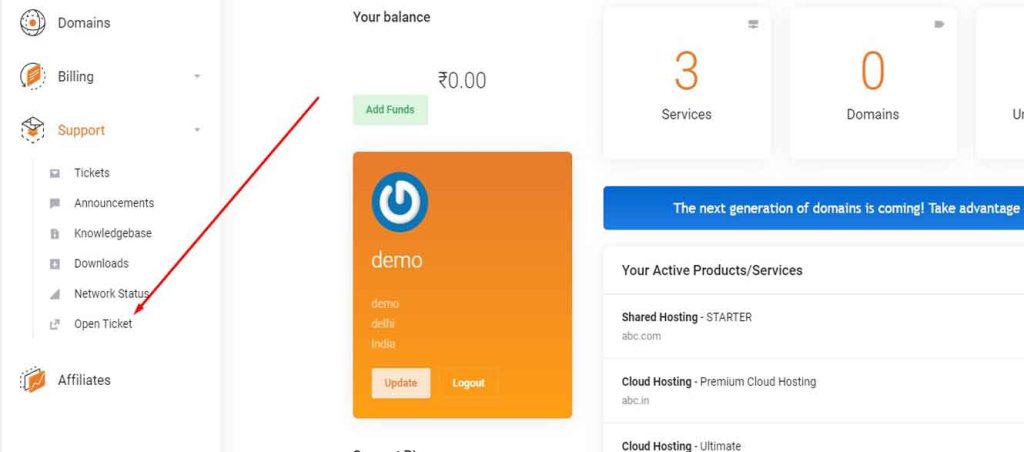
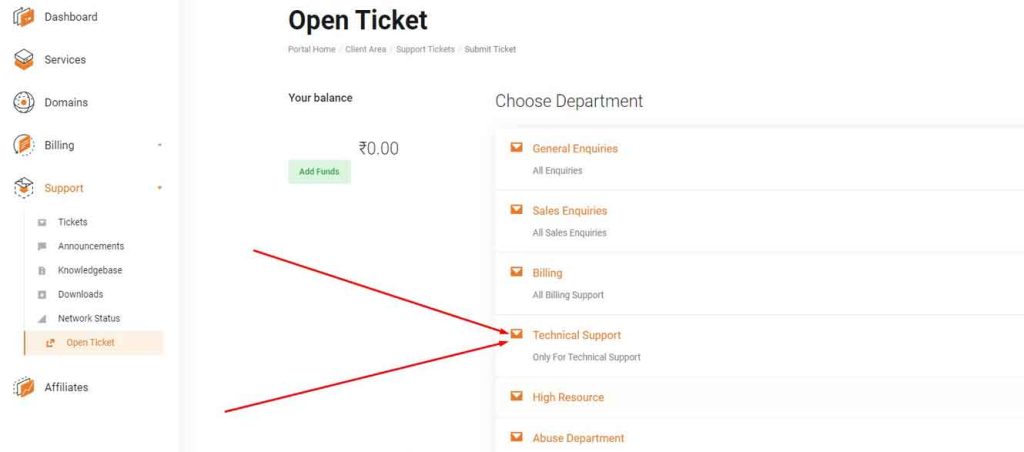
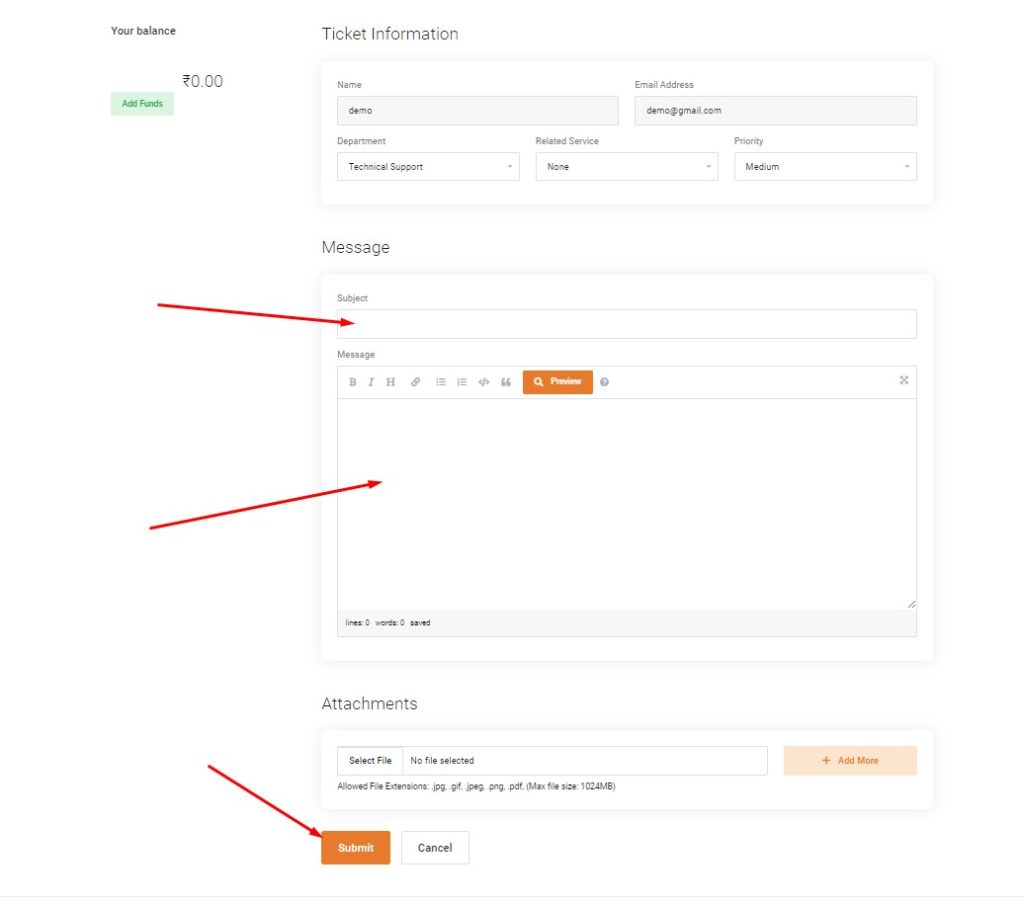
- Under the Actions menu on the left sidebar, select Change Domain or open a quick 1-click ticket to our 24/7 technical team specifying:
- Your current domain:
olddomain.com - Your requested new primary domain:
newdomain.com
- Your current domain:
- Our automated systems update your cPanel virtual host file, pointing your new domain directly to
public_htmlin under 5 minutes without touching your existing website files!
Method 2: Using cPanel Addon Domains (Alternative Multi-Site Approach)
If you are on HeroHosty’s Business or Premium shared plan (which supports multiple websites), you do not necessarily need to replace your primary domain. You can simply add your new domain as an Addon Domain:
- Log in to your cPanel dashboard.
- Navigate to Domains → Domains and click Create A New Domain.
- Enter your new domain name (e.g.,
newdomain.com). - Uncheck “Share document root” if you want a separate website, or keep it checked if you want the new domain to serve the exact same files as your primary domain.
- Click Submit. Your new domain is instantly active!
Step 3: Update WordPress Site URL & Database (Post-Change)
If your website is built on WordPress, changing the server domain alone is not enough; WordPress hard-codes the site URL in its database. To prevent redirection loops or stylesheet breaking, update your database as follows:
Option A: Quick Temporary Fix in wp-config.php
Open cPanel File Manager, locate public_html/wp-config.php, click Edit, and add these two lines above “/* That’s all, stop editing! */”:
define( 'WP_HOME', 'https://newdomain.com' );
define( 'WP_SITEURL', 'https://newdomain.com' );
Option B: Permanent Database Update via phpMyAdmin
- In cPanel, click on phpMyAdmin under Databases.
- Select your website’s database, then click on the
wp_optionstable. - Locate the
siteurlandhomerows (usually rows 1 and 2). Click Edit and replaceolddomain.comwithnewdomain.com.
Step 4: Preserve SEO with a 301 Permanent Redirect
To avoid losing your existing Google rankings and backlinks from your old domain, set up a permanent 301 redirect. Add this code to the .htaccess file of your old domain:
RewriteEngine On
RewriteCond %{HTTP_HOST} ^(?:www\.)?olddomain\.com$ [NC]
RewriteRule ^(.*)$ https://newdomain.com/$1 [L,R=301]
Recommended Web Hosting Plans for Multiple Domains
Single Shared Hosting
Ideal for personal blogs, starter sites, and portfolios.
β 10 GB Enterprise NVMe
β Unmetered Bandwidth
β Free SSL & cPanel
Business Shared Hosting
Designed for growing businesses, WordPress, & e-commerce.
β Unlimited NVMe SSD
β 2 CPU Cores & 4 GB RAM
β LiteSpeed Turbo Caching
Premium Shared Hosting
Max performance for web agencies and high-traffic portals.
β Unlimited NVMe SSD
β 3 CPU Cores & 6 GB RAM
β VIP 24/7 Support & Backups
Frequently Asked Questions (FAQ) : Changing Domain on Hosting
1. Will changing my primary domain delete my website files?
No. Your files stored in public_html and your MySQL databases remain completely untouched. Only the domain mapping in the server’s virtual host configuration is modified.
2. How long does the domain change take to take effect?
On the server side, the change is instant. However, because DNS nameservers must propagate globally, it typically takes 15 minutes to 2 hours for visitors worldwide to see the update.
3. What happens to my old email accounts?
When the primary domain changes, email accounts associated with that domain change to the new domain extension. You should recreate necessary forwarding rules or alias routes for the old domain.